
How to Fix Delta X Errors & Crashes on Mobile (Complete Guide)
Is Delta X (Delta Executor 2.0) crashing, freezing, or not loading on your device? Don’t worry, you’re not the only one. While Delta X is one of the best Roblox mobile executors out there, occasional bugs and errors can still pop up, especially during or after new updates.
In this guide, we’ll walk you through all the common Delta X issues and how to fix them step by step, whether you’re dealing with crashes, black screen, key errors, or failed script injections.
Common Delta X Errors (And What They Mean)
Before we jump into fixes, let’s quickly go over the most reported problems by users:
- App crashes on launch
- Black screen after opening
- Key not working or stuck in loop
- Script not executing
- UI not loading properly
- “Unsupported Game Version” error
- Infinite loading or verification loop
If you’re facing one or more of these, keep reading.
How to Fix Delta X Crashing or Not Opening
If Delta X crashes immediately after opening, here are the possible solutions:
1. Clear App Cache & Data
Old cache files may conflict with the new version.
- Go to Settings > Apps > Delta X
- Tap Clear Cache and Clear Data
- Relaunch the app
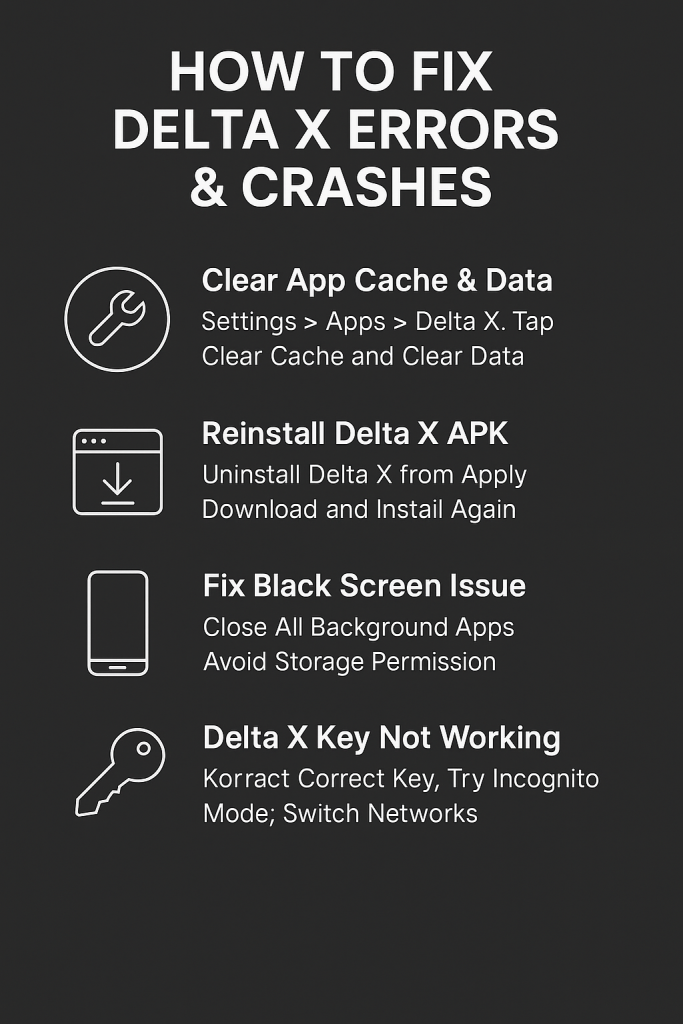
2. Reinstall Delta X APK
Your installation may be corrupted.
- Uninstall Delta X from your phone
- Download the latest APK again from DeltaExecutr.com
- Install the fresh file and try again
3. Check for Android Compatibility
- Delta X runs best on Android 8.0 or higher.
- If you’re on an older OS, consider updating or switching to a newer device.
How to Fix Delta X Black Screen Issue
The black screen error usually means the app can’t initialize due to low memory or missing permissions.
Fix It By:
- Closing all background apps
- Restarting your phone
- Making sure storage isn’t full
- Going to Settings > Apps > Delta X > Permissions and enable Storage, Internet, and Overlay
Fixing Delta X Key Not Working or Looping
If you’re trying to activate Delta X but the key isn’t working or the app is stuck in a loop, don’t worry, it’s usually easy to fix. On DeltaExecutr.com, we provide a direct key system without using Linkvertise or third-party gateways. Make sure you’re copying the full key exactly as shown, without any extra spaces or characters.
If the key still isn’t accepted, try restarting the app and entering it again. Some users also report that clearing the app cache or using a different internet connection (like switching from Wi-Fi to mobile data) helps resolve the issue. If the problem continues, visit our Support Page for a fresh key or personalized help.
Delta X Script Not Executing? Here’s What to Do
If your script isn’t injecting or nothing happens when you tap Execute, try the following:
- Use a valid Roblox script (not outdated or patched)
- Check that the script is written in Lua (Delta doesn’t support other types)
- Try with a different game that supports exploits
- Restart both Roblox and Delta X before retrying
Make sure you’re using valid, up-to-date scripts. Browse our list of working Roblox scripts for Delta X to test compatibility.
Other Troubleshooting Tips
Give Delta X Full Permissions
- Go to Settings > Apps > Delta X > Permissions
- Allow Storage, Overlay, and Network access.
Turn Off Battery Optimization
Battery-saving modes can prevent background injection.
- Go to Settings > Battery > Delta X
- Select “Don’t optimize”
Use a Stable Internet Connection
A poor connection can block the key system or script download.
Still Not Working? Try These Last Resorts
If nothing works, try these final tips:
- Try using a VPN if Linkvertise is blocked in your region
- Reboot your device completely
- Wait for the next Delta X update, especially if Roblox just rolled out a new patch
- Use a different script or test on another game
Final Words
Delta X 2.0 is a powerful Roblox executor, but like any advanced tool, it’s not immune to occasional bugs or crashes, especially on mobile. The good news? Most issues are easy to fix by clearing the cache, reinstalling the APK, verifying your key, and giving the app full permissions.
If you’ve followed all the steps in this guide, Delta X should now work smoothly on your Android device.
Are you still stuck? Reach out via our Support Page and we’ll help you out.